


Friday, May 23, 2014
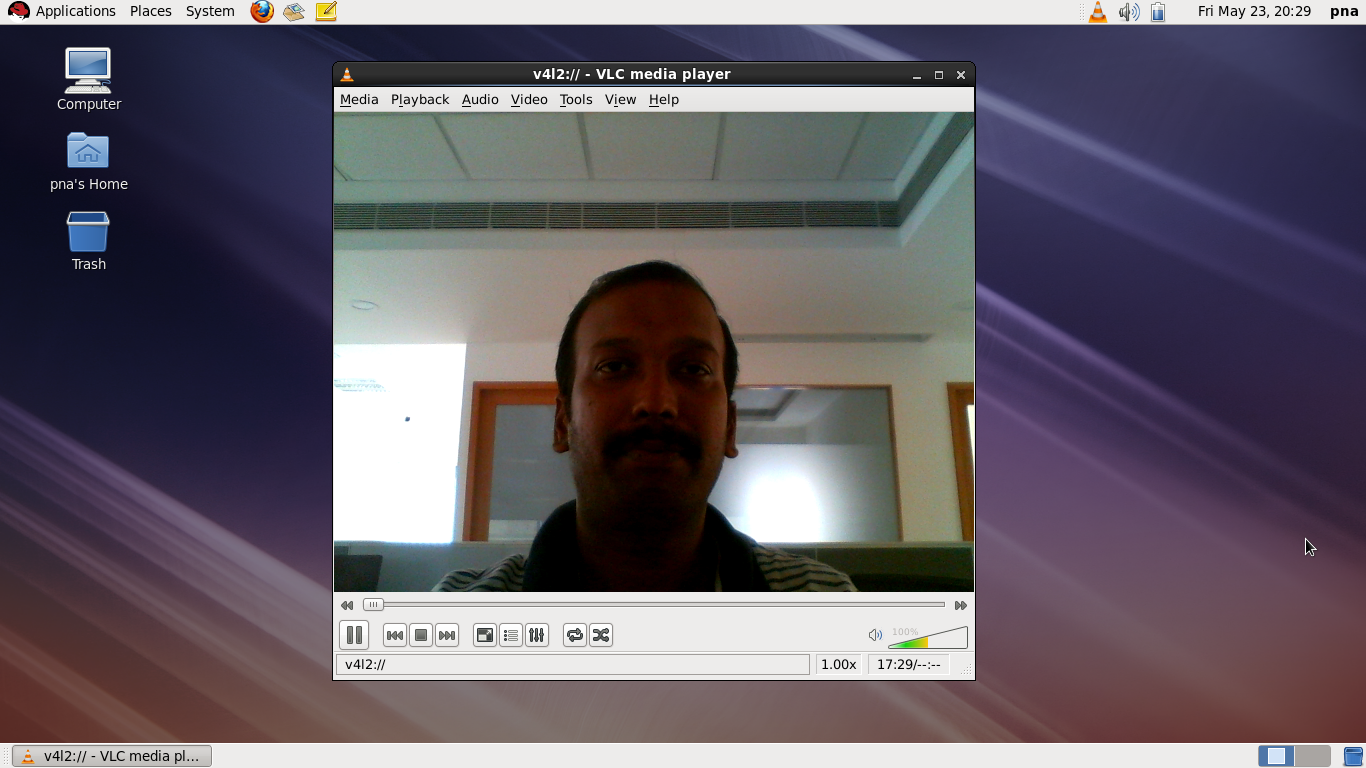
Webcam functions good with VLC Player in RHEL6.5

Installation of VLC player in RHEL6.5

https://drive.google.com/folderview?id=0B37XfxCcR3Znek1tVExUdnI1ekk&usp=sharing
Step2: chmod +x vlc6-installation.sh
Step3: ./vlc6-installation.sh
Sit back and relax for sometime.
Step4: useradd username, passwd username
Step6: Applications -> Sound & Video -> VLC Media Player


Simple Samba Server Configuration in Ubuntu Server 12.04 LTS
Samba server is mainly used for file sharing in cross platform environment. You can find the simple following steps to make Samba file server configuration in Ubuntu Server 12.04 LTS.
 Step 1: Install the samba package from online repository
sudo apt-get install samba
Step 2: Edit the configuration file /etc/samba/smb.conf
workgroup = EXAMPLE
This EXAMPLE can be your domain name or some desirable name
Step 3: Make or add the following changes in the bottom of the file. Use bottom of the file for improving your readability. However, you can add these lines in any portion of the configuration file (for advanced users- generally not recommended for normal users).
[share]
comment = Ubuntu File Server Share
path = /srv/samba/share
browsable = yes
guest ok = yes
read only = no
create mask = 0755
valid users = employee
Step 4: Make a directory
mkdir -p /srv/samba/share
Step 5: Restart the following services
sudo restart smbd
sudo restart nmbd
Step 6: Create users only to access samba share
useradd -s /sbin/nologin employee
smbpasswd -a employee
smbpasswd -e employee
To access samba via command line
smbclient //192.168.10.11/data -U employee
sudo apt-get install samba
Step 2: Edit the configuration file /etc/samba/smb.conf
workgroup = EXAMPLE
This EXAMPLE can be your domain name or some desirable name
Step 3: Make or add the following changes in the bottom of the file. Use bottom of the file for improving your readability. However, you can add these lines in any portion of the configuration file (for advanced users- generally not recommended for normal users).
[share]
comment = Ubuntu File Server Share
path = /srv/samba/share
browsable = yes
guest ok = yes
read only = no
create mask = 0755
valid users = employee
Step 4: Make a directory
mkdir -p /srv/samba/share
Step 5: Restart the following services
sudo restart smbd
sudo restart nmbd
Step 6: Create users only to access samba share
useradd -s /sbin/nologin employee
smbpasswd -a employee
smbpasswd -e employee
To access samba via command line
smbclient //192.168.10.11/data -U employee
Thursday, May 22, 2014
Red Hat yum server via CentOS
Red Hat yum server can be set by using centos repository
[CENTOSREPO]
name=centos repos
baseurl=http://ftp.heanet.ie/
enabled=1
gpgcheck=0
[CENTOSREPO]
name=centos repos
baseurl=http://ftp.heanet.ie/
enabled=1
gpgcheck=0
Chamilo works good in Ubuntu 12.04 LTS
Chamilo works good with Ubuntu 12.04 LTS server edition which is used for online E-learning collaboration software.

The following commands are used for changing the ip of the server, if required
vi /www/html/chamilo/main/inc/conf/configuration.php
sudo service apache2 restart
The following commands are used for changing the ip of the server, if required
vi /www/html/chamilo/main/inc/conf/configuration.php
sudo service apache2 restart
Firefox 29.0.1 works good in RHEL6.5

Step2: tar xvjf firefox.tar.bz2
Step3: goto the specified directory and give ./firefox
Monday, April 14, 2014
Enabling hibernation in Ubuntu server 12.04
In Ubuntu 12.04 and newer, hibernation has been disabled by default in policykit.

Type the following command:
Type the following command:
sudo nano /etc/polkit-1/localauthority/50-local.d/com.ubuntu.enable-hibernate.pkla
[Re-enable hibernate by default]
Identity=unix-user:*
Action=org.freedesktop.upower.hibernate
ResultActive=yes
Subscribe to:
Posts (Atom)
